VCF 9.1 Certificate replacement
This post describes how to manually replace certificates for VCF Components with a Microsoft CA that is not connected to VCF. A high level overview of the steps that needs to be taken:
- VCF Operations: CSR Generation
- Microsoft CA: Create certificates from the CSRs
- VCF Operations: Import Certificates
- VCF Operations: Replace Certificates
- VCF Operations: Validate assigned Certificate
VCF Operations: Generate CSRs
As an example I will use VCF Operations and the VCF Operations Cloud Proxy
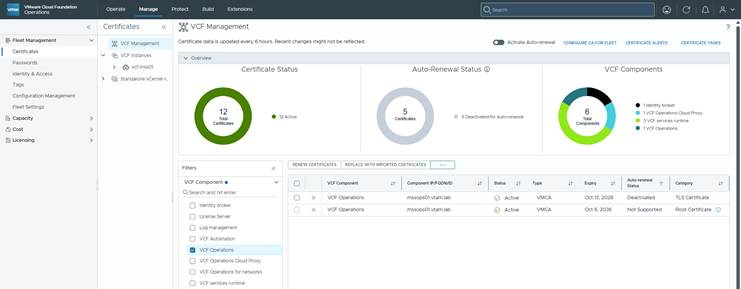
There are two certificate categories:
1. Root Certificate which cannot be changed:
2. TLS Certificate where we have a few options:
- Generate CSRs
- Download CSRs
- Replace with Configured CA Certificate
- Import Certificates
- View Imported Certificates
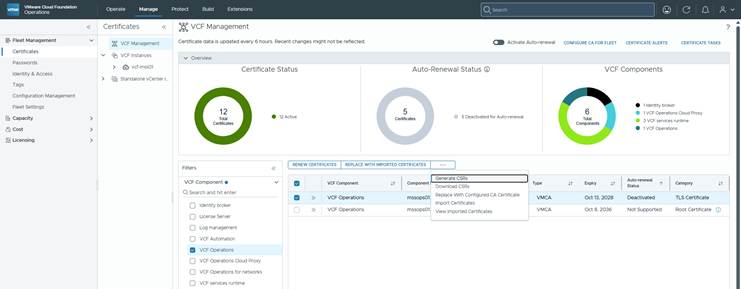
Since I do not have a Microsoft or OpenSSL CA configured / connected in VCF, I will go through the manual procedure.
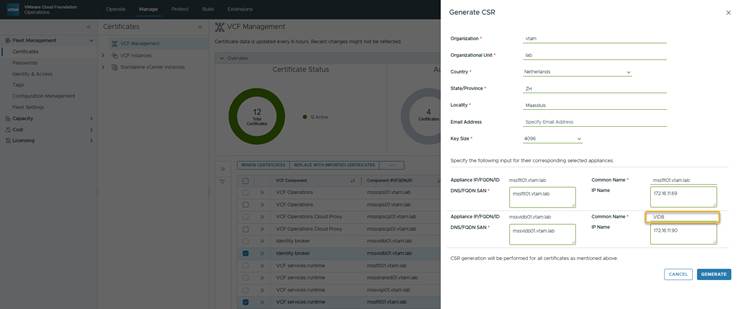
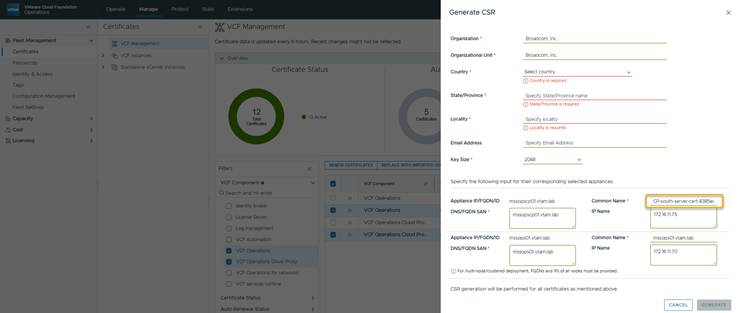
=> First generate a Certificate Signing Request (CSR):
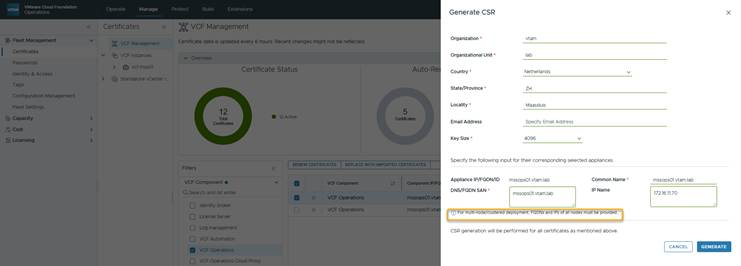
Note: I only have a single node deployment, but if you have multi-node or clustered setup, add all FQDNs AND IP addresses.
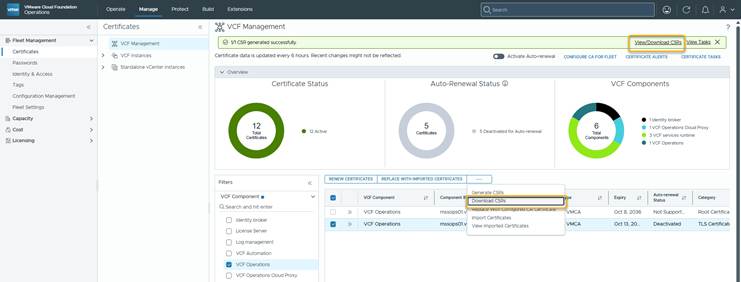
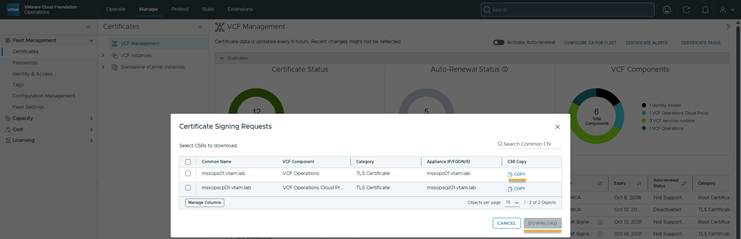
=> Wait until the task is finished and download the CSR.
=> Create a CSR for the Operations Cloud Proxy. Don’t forget to update the Common Name field (also for VIDB).
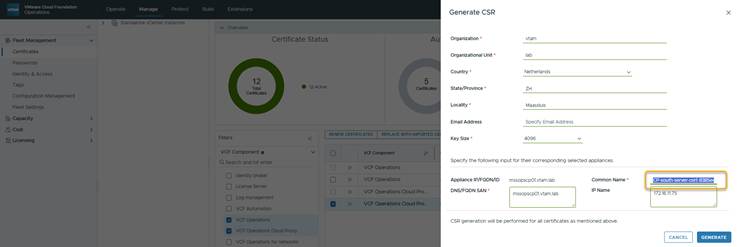
! To make life easier; you can create multiple CSRs at the same time. For example VCF Operations and the Cloud Proxy in one task:
=> After CSRs are generated, Click on Download CSRs. Besides downloading the CSRs, you can also copy the contents of the CSR and save / input it in some other way.
Microsoft CA: Create certificates from the CSRs:
Create certificate on your Microsoft CA (command line):
certreq -adminforcemachine -config "ca01\vtamca01" -submit -attrib "CertificateTemplate: VMware" "Y:\homelab\certs\csr\mssops01.vtam.lab-mssops01.vtam.lab-TLS_Certificate.csr"VCF Operations: Import Certificates
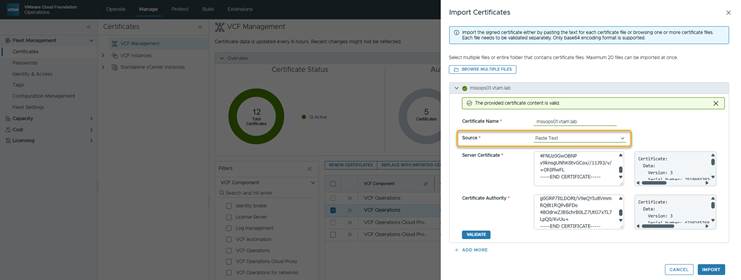
You have the option to import the certificate through:
1. Certificate chain file
Copy / paste the contents of the server and ca certificate in one file and import as certificate chain file.
2. Paste text (Paste contents of server and CA certificate files)
VCF Operations: Replace Certificates
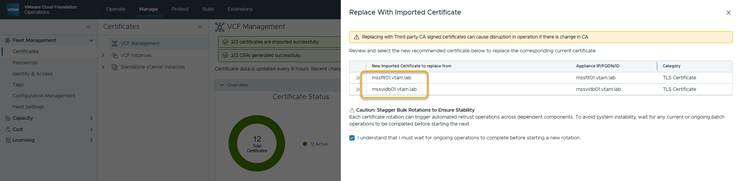
Importing the certificates does not actually replace the certificates. To do this select the components where you have created your certificates for; all or one by one. In the screenshots below, both certificates will be replaced.
=> Click: Replace with Imported Certificates
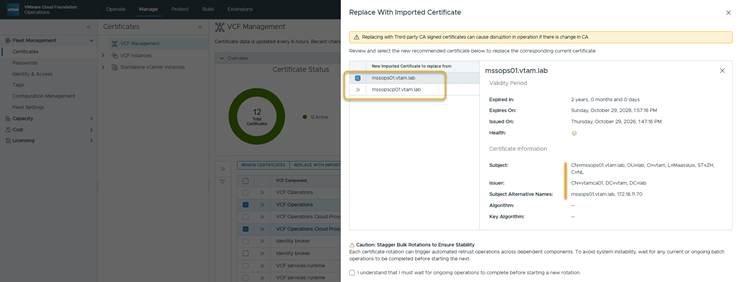
=> Check if the correct certificates are selected
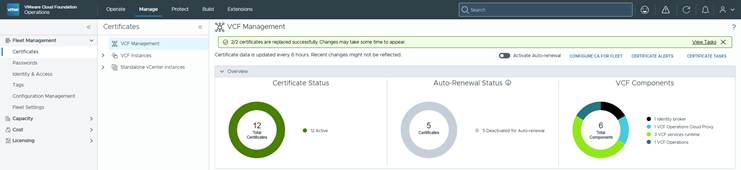
=> Log out of VCF Operations.
=> Close your browser and clear cookies
VCF Operations: Validate assigned Certificate
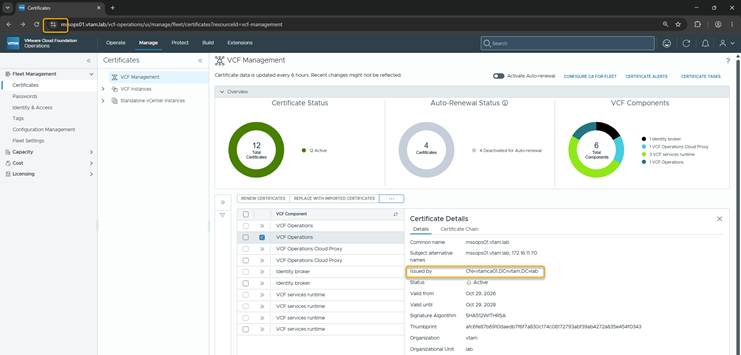
If you have imported your CA Certificate into your system, the VCF Operations web interface should not give a non-secure warning in your browser anymore. Note that if your VIDB certificate was not replaced, you will see a warning during logon.
You can also check Under Manage, Fleet management, Certificates, select the component and check the certificate.
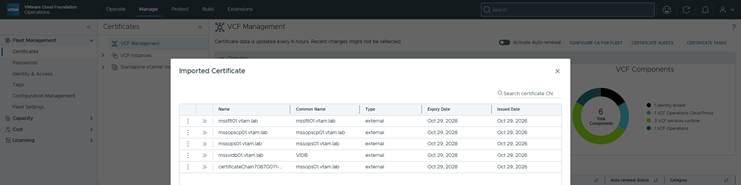
View imported certificates (Do not have to be in use)
Additional Screenshots